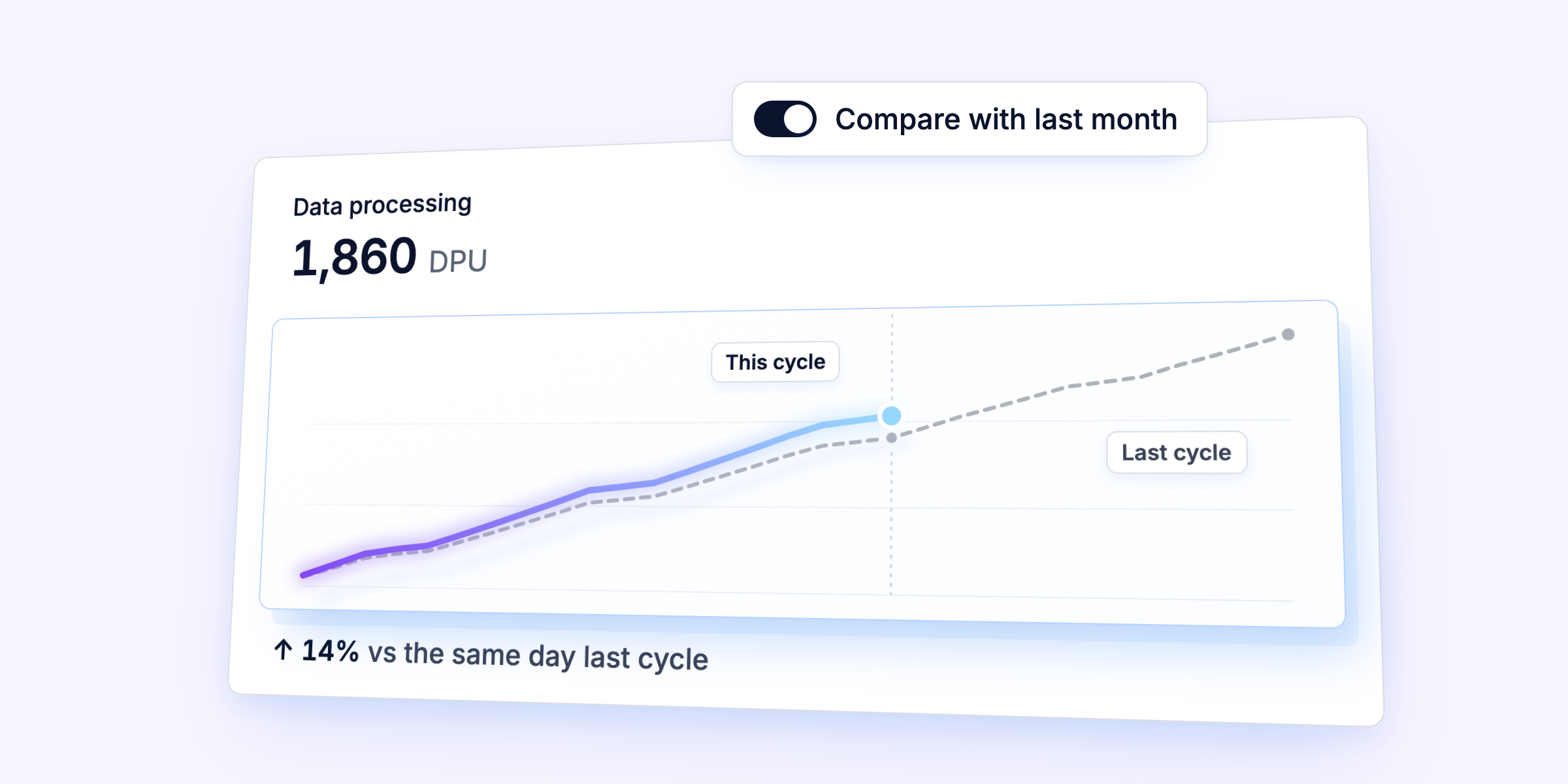
AI Assistant: ask your data, then have it build for you
The AI Assistant answers plain-language questions about your business data, creates the datasets you need and proposes tests, right on the page where you work.
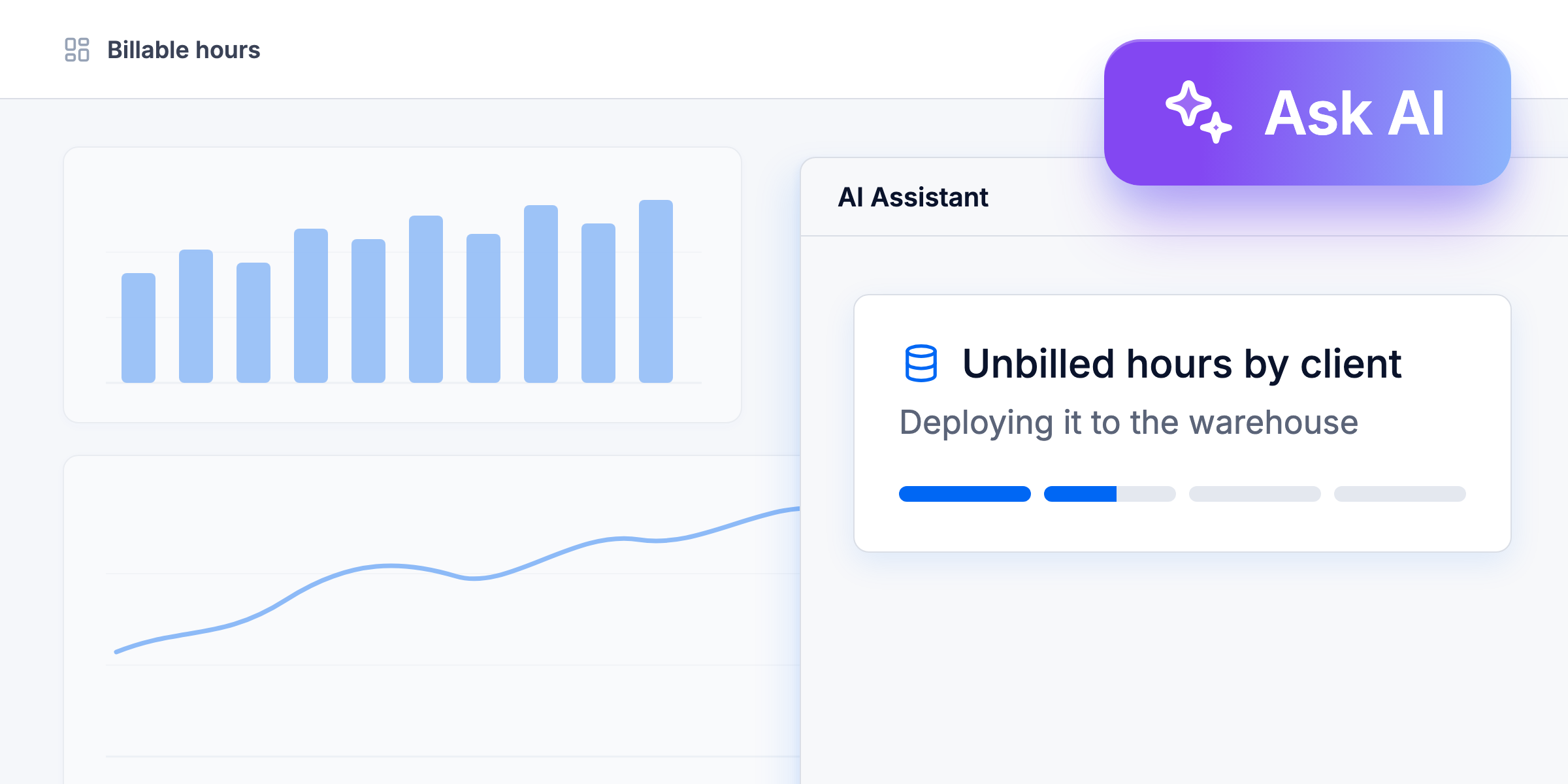
Think of the AI Assistant as one conversation that can happen in two places: its own page in the sidebar, or a panel opened with "Ask AI" that sees what's on your screen. You ask, it shows each step as it works, and anything it proposes waits for you to create it or review it first.
Why it matters
- Get answers from your data without writing SQL yourself.
- Understand why a refresh failed, in plain language, and review a fix it proposes.
- Skip manual steps: the assistant can create a dataset, deploy it and follow its first refresh.
What you can do with the AI Assistant
Get answers in plain language, and see how they were found
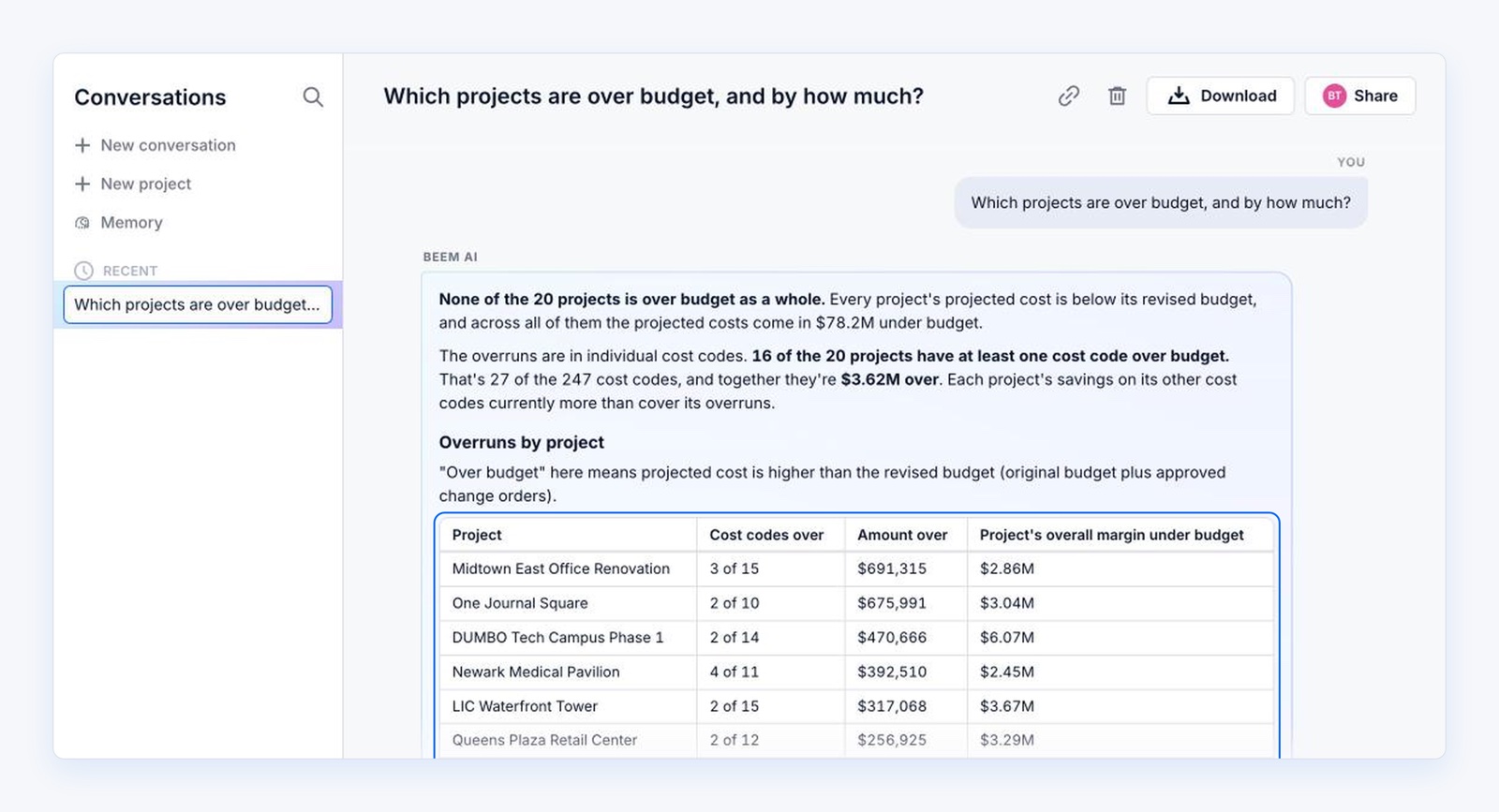
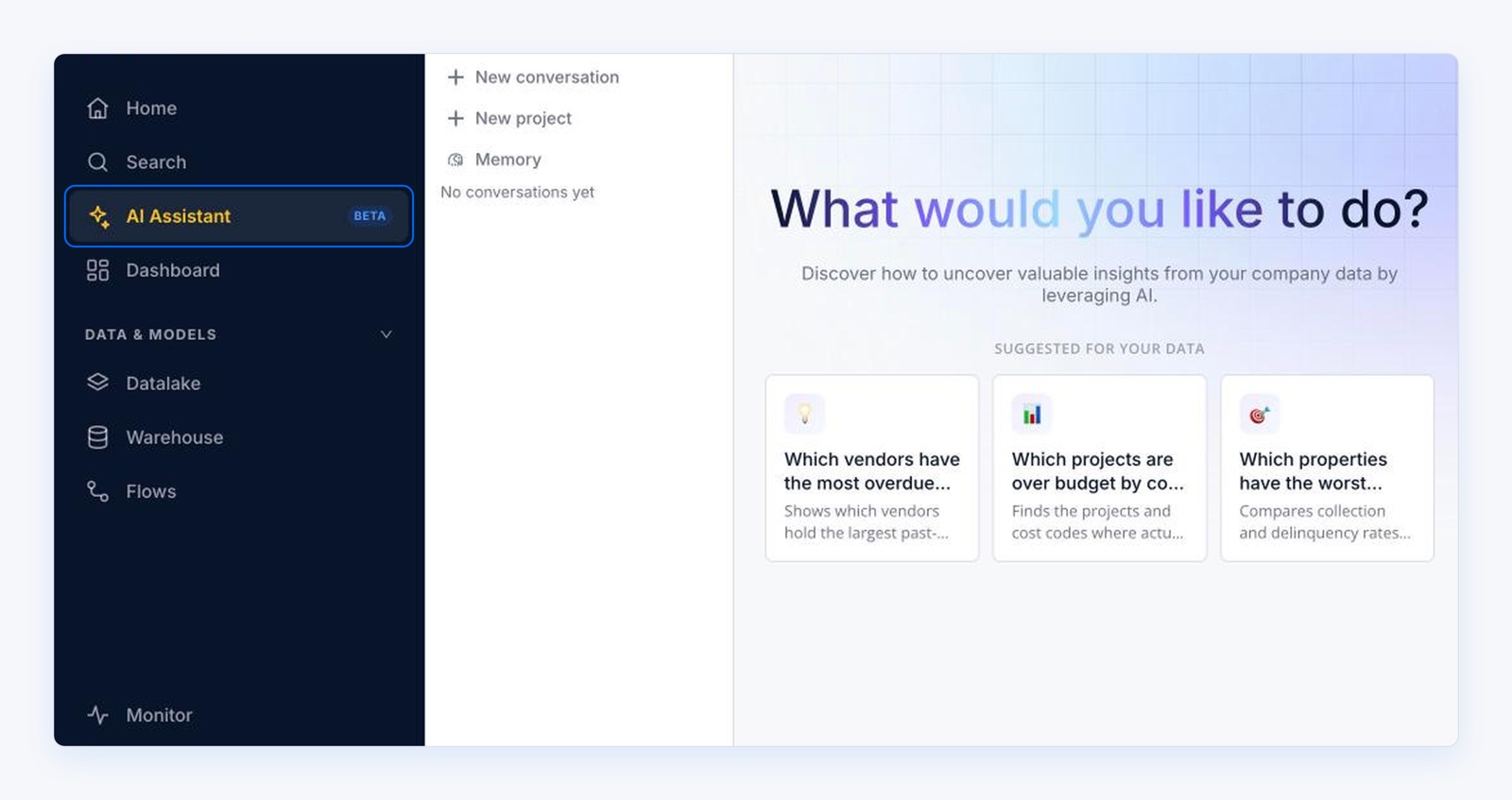
Type a question such as "Which projects are over budget, and by how much?" and the AI Assistant answers from the datasets marked as searchable in your workspace. The answer appears as it's written, and you can follow each step live, from "Thinking it through" to "Running a query on your data" to "Writing it up". "Show Query" and "Show Data" reveal what sits behind an answer, and "Datasets BEEM AI can use" sets which datasets a conversation draws on. To get started, the landing page offers suggestions generated from your own data.
Ask about the page you're on
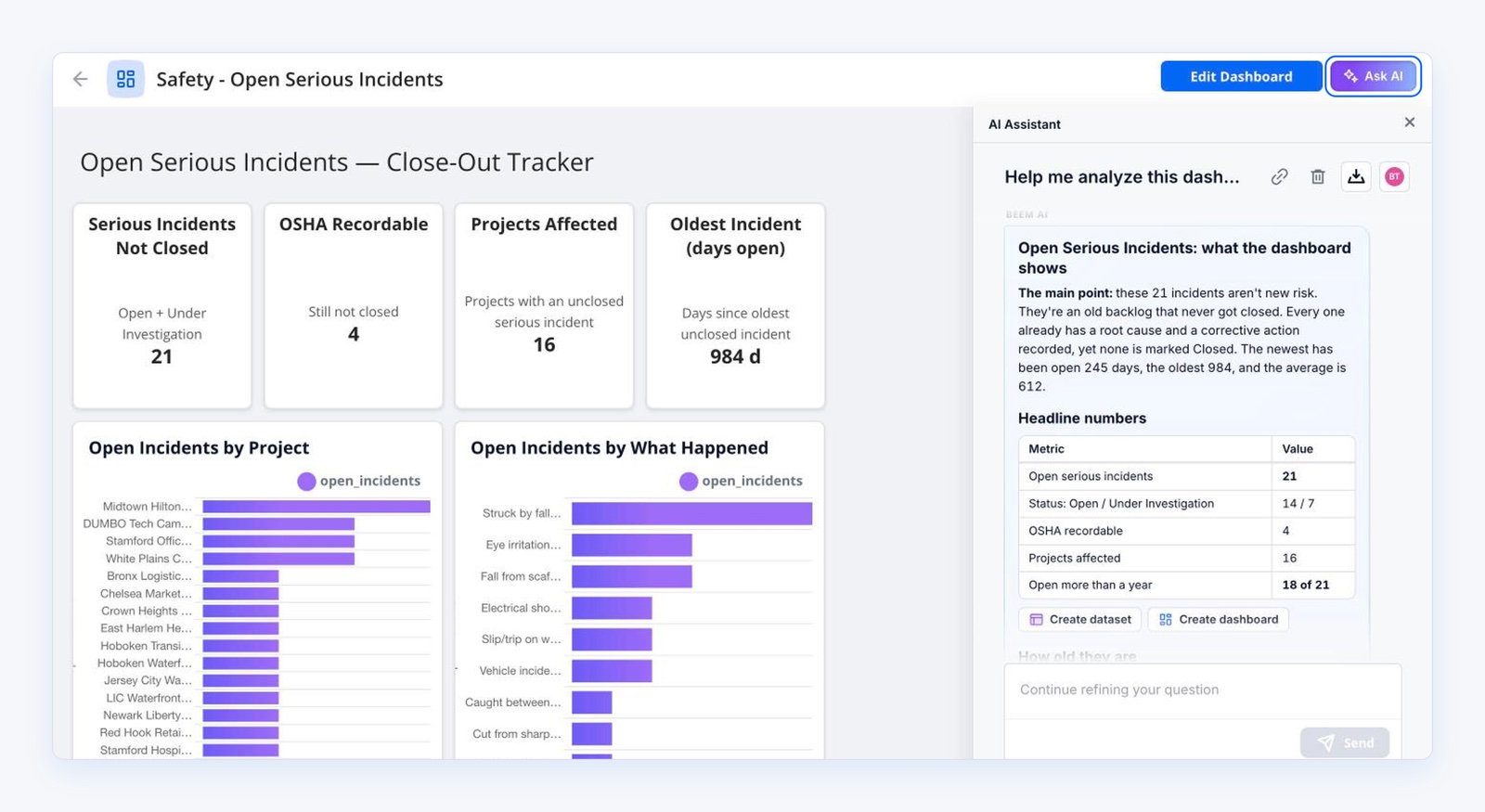
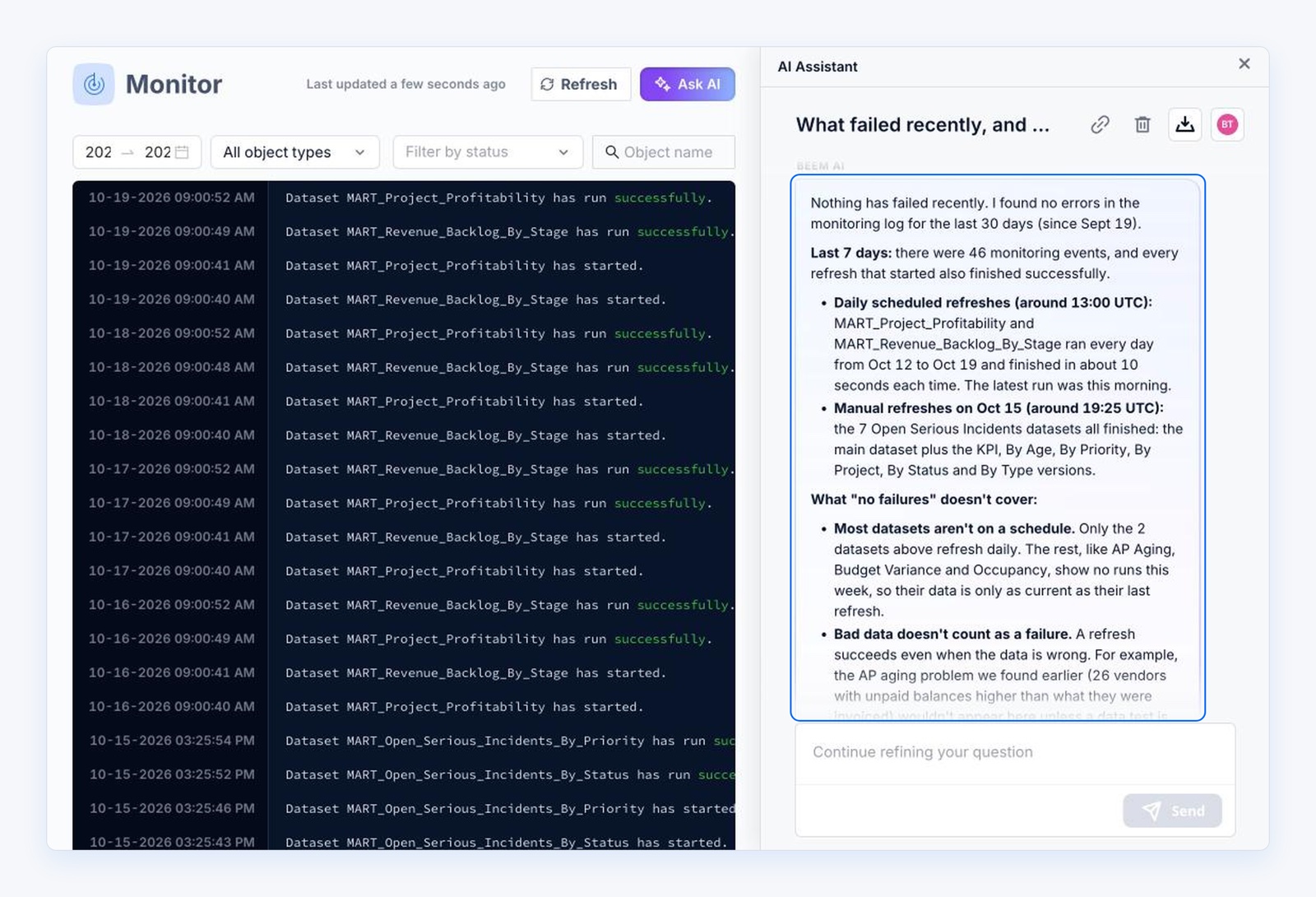
The "Ask AI" button, with its sparkle icon at the right of the page header, opens the AI Assistant in a panel beside your work. It knows what's on screen, so "this dashboard" or "the second row" means what you see, filters and sorting included. Each page suggests a first question, such as "What failed recently, and why?" in Monitor, and lists its earlier conversations under "Earlier here".
Turn a question into a dataset, a test or a dashboard
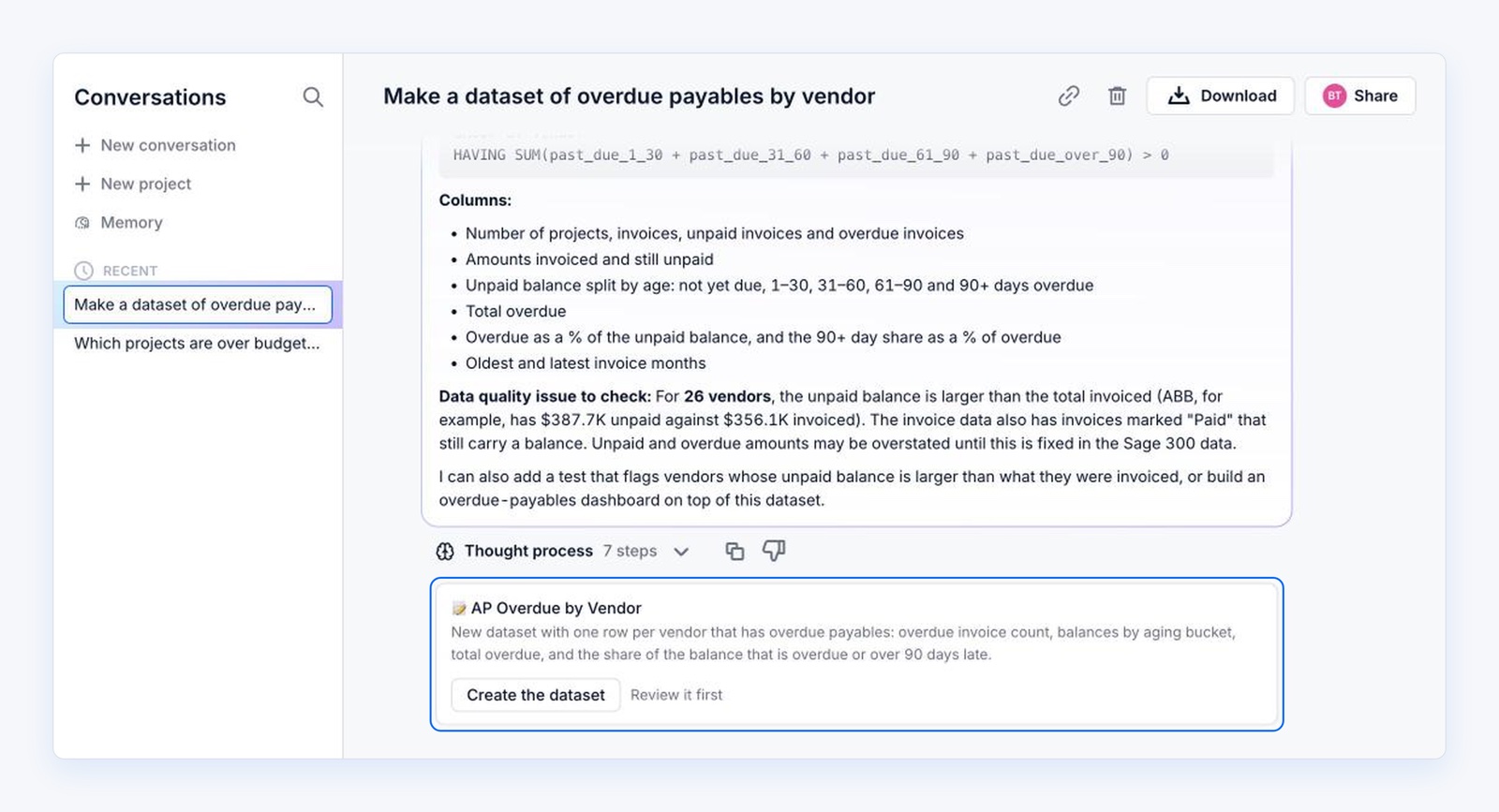
Ask for something like "Make a dataset of overdue payables by vendor" and the assistant proposes one from a query. "Create the dataset" deploys it to the warehouse and follows its first refresh, while "Review it first" saves a draft and opens the SQL in the editor. It can also propose a test on a dataset, tell you whether it passes or fails today, and open it in the test editor with "Create the test". Where AI dashboards are available in your workspace, it can build one that you then refine by asking in the dashboard's own chat. If the data you need isn't connected yet, it can offer to connect the source and bring you back to the same conversation once it's set up. Datasets and AI dashboards it creates show an icon beside their title that links back to the conversation.
Check what ran, and find out why something failed
In Monitor, ask "What failed recently, and why?" and the assistant reads what ran or failed and sums it up. When something did fail, it reads the dataset involved to explain the cause, and it can propose corrected SQL that it test-runs first. "Review in the editor" opens the fix, and nothing is saved until you review and deploy it yourself.
Keep, organize and share your conversations
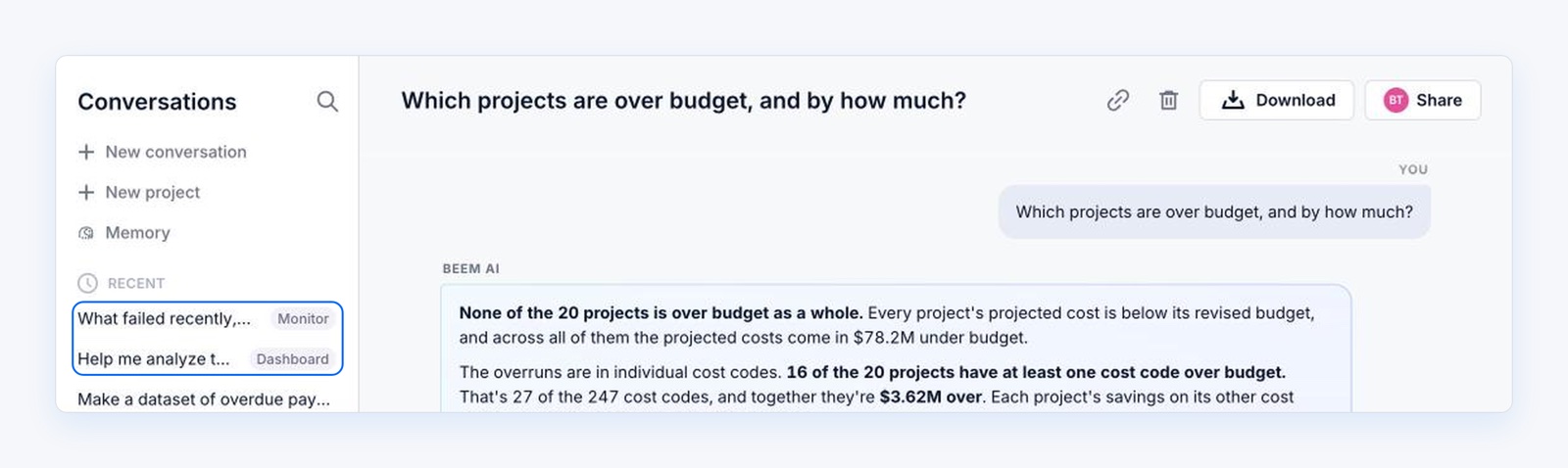
Every conversation is saved under "Conversations" and labelled with where it started, so you can search it, rename it and pick it up on any device. "New project" groups related conversations with a shared description, reference material and default datasets. "Share" lets workspace members read a conversation, "Copy link to this conversation" copies its own address, and "Download" exports it as a PDF or as data tables with the transcript. Where Memory is turned on, the assistant remembers your facts and preferences, and "Memory" lets you see, edit or clear them.
Where to find it
The AI Assistant sits in the sidebar and in the header of the pages you work on.
- Select "AI Assistant" in the sidebar.
- Under "What would you like to do?", type in the box that reads "Ask a question, or say what to build".
- On a dashboard, dataset, Datalake table, flow or Monitor page, select "Ask AI" at the right of the page header instead.
Availability
- The AI Assistant and "Ask AI" are available on every BEEM account.
- Every role, Viewers included, can use the AI Assistant page and "Ask AI" on classic dashboards. Dataset, Datalake, Monitor and flow pages, and their "Ask AI" button, aren't available to Viewers.
- On the full page, answers come from datasets marked as searchable or the ones you select, while the panel can use every dataset in the workspace.
- Shared conversations are read-only for others, and only the owner can share one. The app interface is in English.